
 Subledger Reconciliation
Subledger Reconciliation
Subledger reconciliations identify various issues in the ledger that may require your attention. Each time you Find Variances, any new issues that are not open on the Kanban board are reported to you on the Subledger Rec tab.
Finlee identifies the following variances each time you click Find Variances on the Ledger Rec tab:
- Aged Uncleared: Aged Uncleared ledger transactions are ACH transactions in the ledger that have aged (not cleared when expected) The number of days before a transaction is considered aged is configurable by a Tenant Administrator in the Organization tab.
- Negative Balance: A ledger balance by client that is less than $0. This will alert you to a client ledger where more payment transactions have been recorded in the ledger than deposit transactions, resulting in a negative ledger balance.
- Positive Balance: A ledger balance by client that is more than $0. By default, this is calculated on all non-tax ledgers. This will alert you to a client ledger where more deposit transactions have been recorded in the ledger than payment transactions, resulting in a positive ledger balance. This feature is opt-in. To enable Positive Balance monitoring, please contact support@rakedigital.com.
- Liability Variance: A tax ledger balance by client that differs from the total outstanding liabilities. This will alert you that you are not holding the correct amount of funds for a client.
**Please note the following important information about subledger reconciliation items:
- There are times when a single customer may have both a negative liability for the tax ledger and a liability variance. If a customer has an open liability variance, the negative liability subledger reconciliation item will not be presented in order to prevent the same issue from having two cards on the kanban board.
- Subledger reconciliation items are NOT calculated on customers tagged as Internal from the Organization tab.
- Liability Variances will not be calculated until you import a file with a liability type of Liability Variance that has been previously set up in your tenant configuration. Please contact support@rakedigital.com if you do not want to see Aged Uncleared or Negative Liability variances.
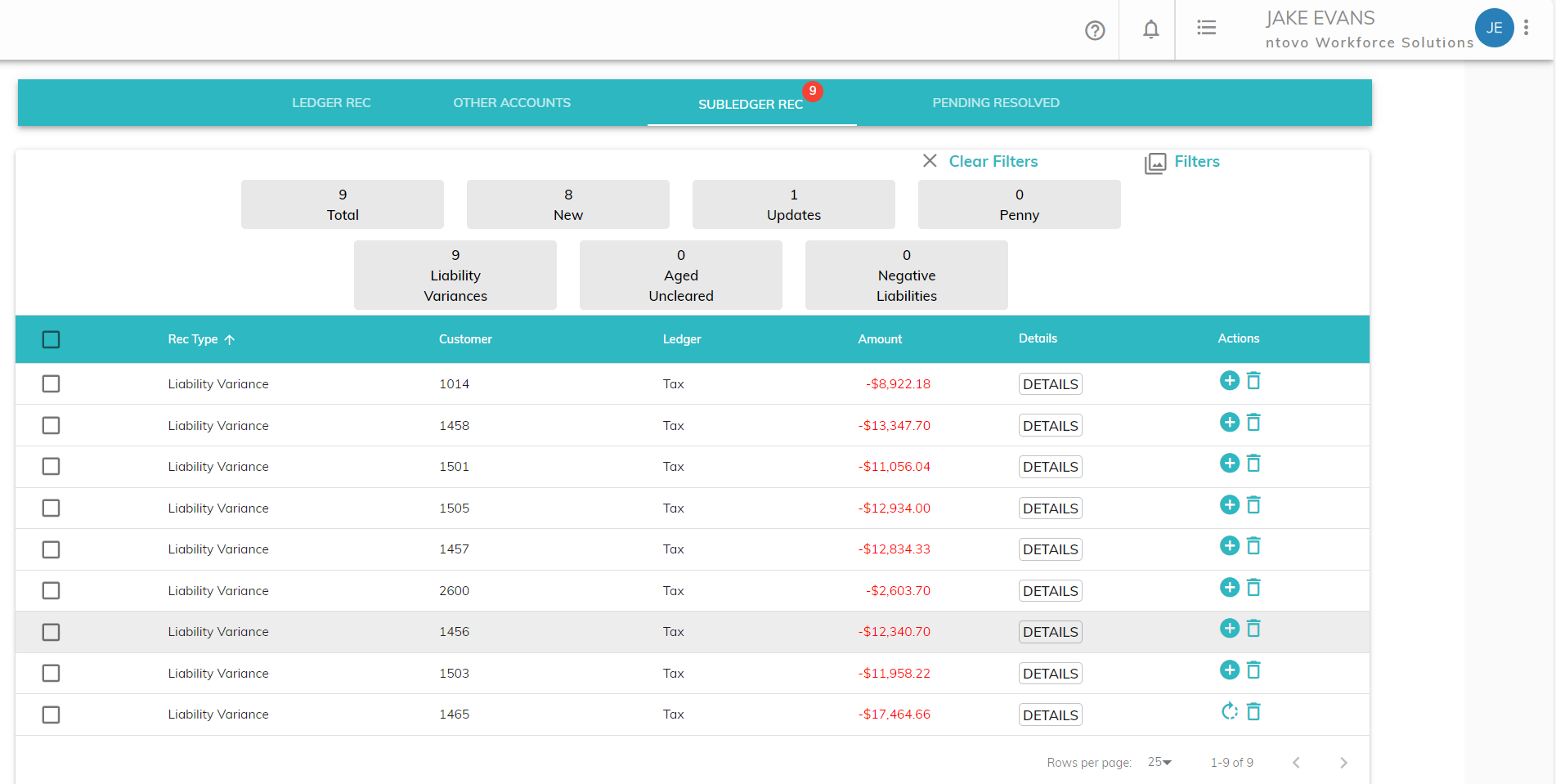
Liability Variance by Tax Code
Liability Variances can be calculated at the company level or at the tax code level. If calculated at the company level, Finlee will compare each company's tax ledger balance with that company's unpaid liability balance and report variances on the subledger reconciliation tab. In this case, each company will contains a single liability balance that includes all unpaid tax liabilities for that company.
If calculated at the tax code level, Assure will compare each company's tax ledger balance for each tax code to that company's unpaid liability balance by tax code. In order to use this functionality, the impounds and payments recorded in the ledger will need to include tax code information. Additionally, unpaid liability files must include unpaid liability balances by tax code.
By default, Assure calculates liability variances at the company level. If you would like to turn on liability variances by tax code, please contact support@rakedigital.com.
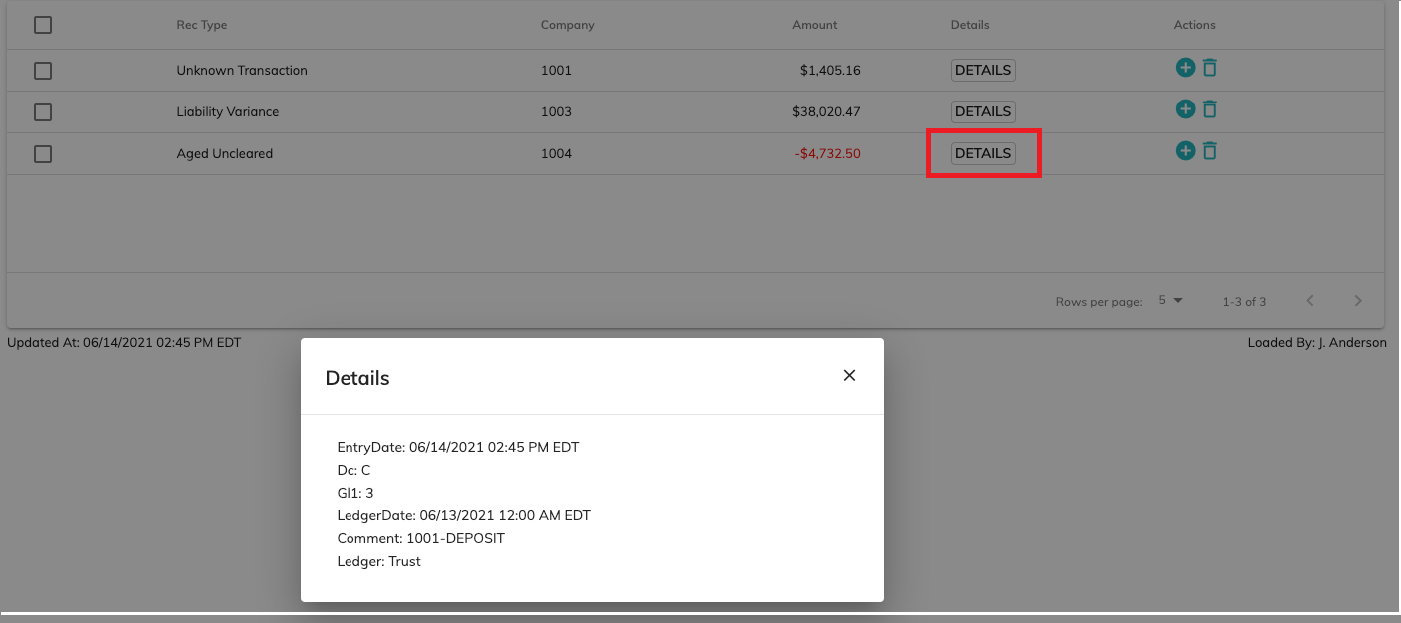
View Details
You can view the details of the transaction by clicking the Details button.
Actions
When you first click on the Subledger Rec tab, the Actions column will contain an add icon or an update icon on each row. If the add icon is present on the row, that means that the Rec Type is either Aged Uncleared, Negative Liability, or Liability Variance and that Assure has identified an issue that is not currently open on the kanban board.
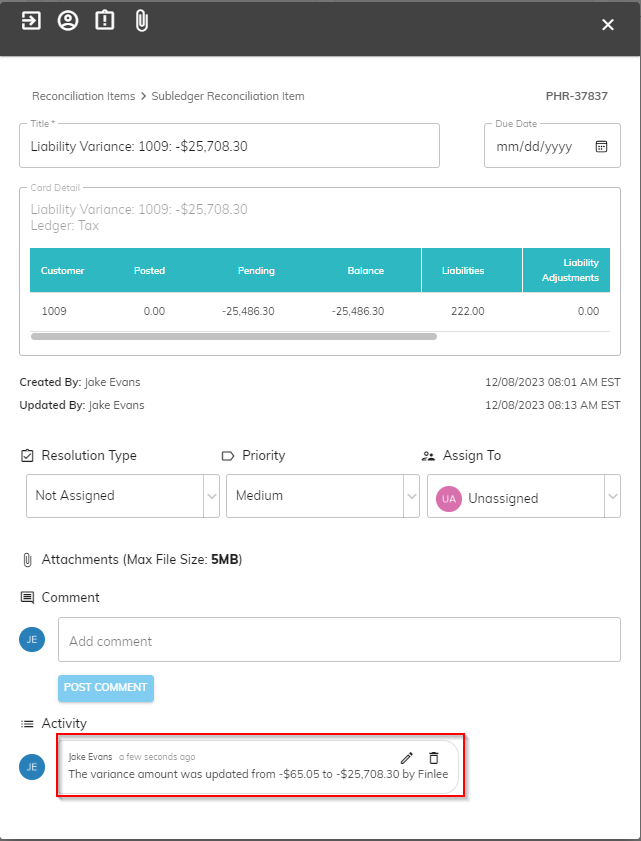
If the row contains an update icon, that means that the Rec Type is either Negative Liability or Liability Variance and that Assure has identified that the variance amount has changed on an existing open kanban card.

When you click update on one of these transactions, the card details will be updated with the updated variance amount and a comment will be added to the card indicating that the amount has been updated by the system.
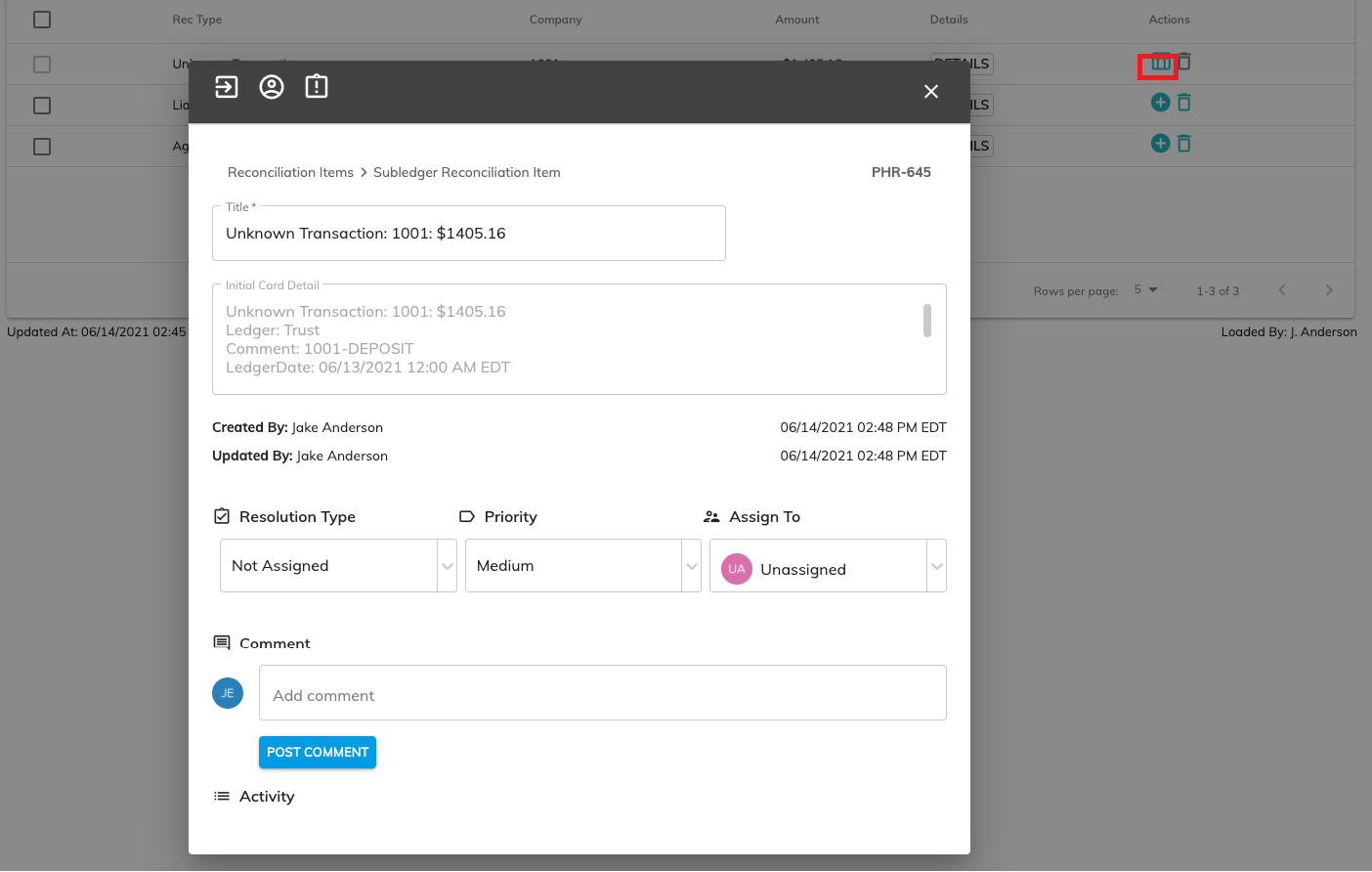
Add / Update Card for an Individual Issue
You can click the plus button next to the transaction to add a card to the kanban board for an individual item. Once added, the kanban card can be viewed on this Subledger Rec tab until you click off of the screen or on the kanban board.
Add / Update Card for all Issues
You can click on the checkbox on the header row to select all issues that haven't already been added to the kanban board. Next, click the plus (+) sign at the top right to add or update cards for each item.
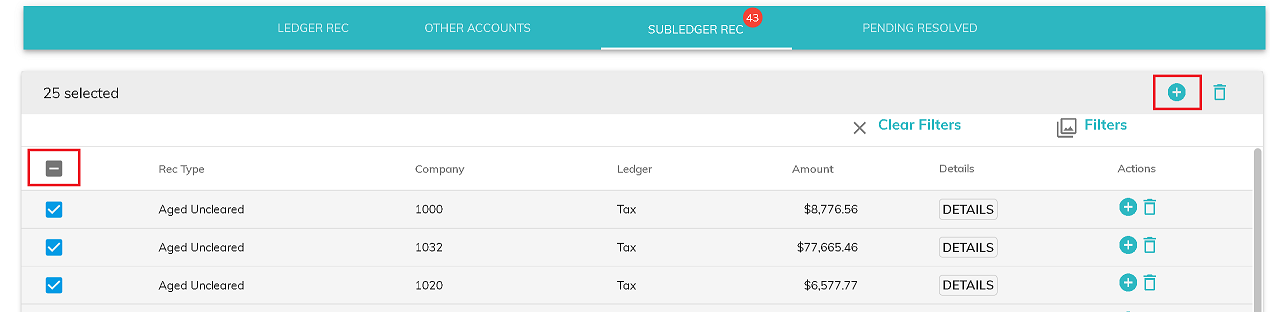
Important notes:
Deleting an item that resulted from manually adding a transaction (User Reconciliation Item) will remove the item from the list. It will not be added to the kanban board or re-appear the next time the Find Variances button is clicked. Use this option with caution.
Deleting an item that was identified by Assure (Subledger Reconciliation Item or Ledger Reconciliation Item) will remove it from the list. It will not be added to the kanban board; however, if the issue still exists the next time the Find Variances button is clicked, the item will re-appear on the Subledger Rec tab.
Filter transactions on Subledger Rec
Select the Filters icon to filter the Subledger Rec items by the following fields:
- Rec Type
- Company
- Ledger
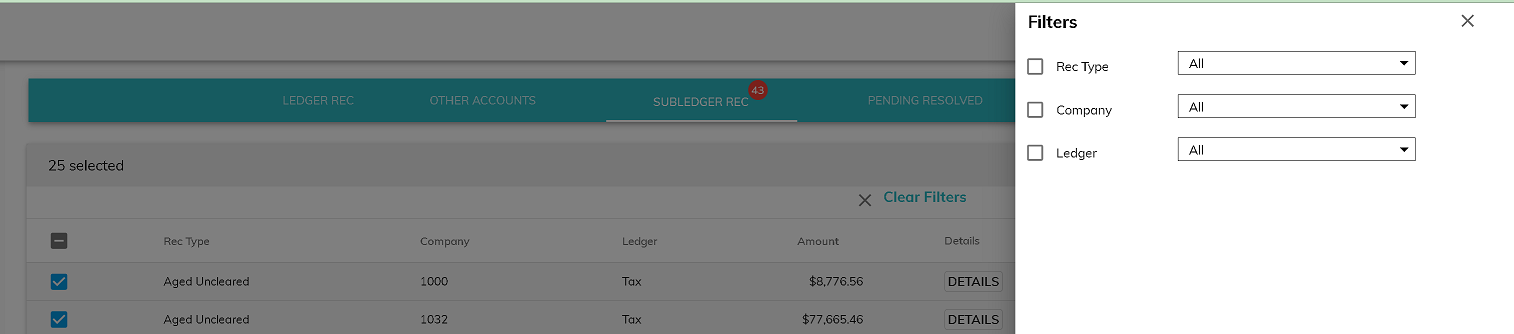
Once you have selected your desired filters, click Apply Filters. Click Clear Filters to remove the filters from the screen.
© RAKE Digital Company, 2026 • Updated: 02/23/26
Comment or report problem with topic