
 Search Bank
Search Bank
The Search Bank screen is used to research bank transactions.
Filters
Filters can be used in conjunction with each other. Click the Filters icon. Choose the filters you would like to apply and click the Apply Filters box to search for the transactions(s). Reset the filters by clicking Clear Filters.
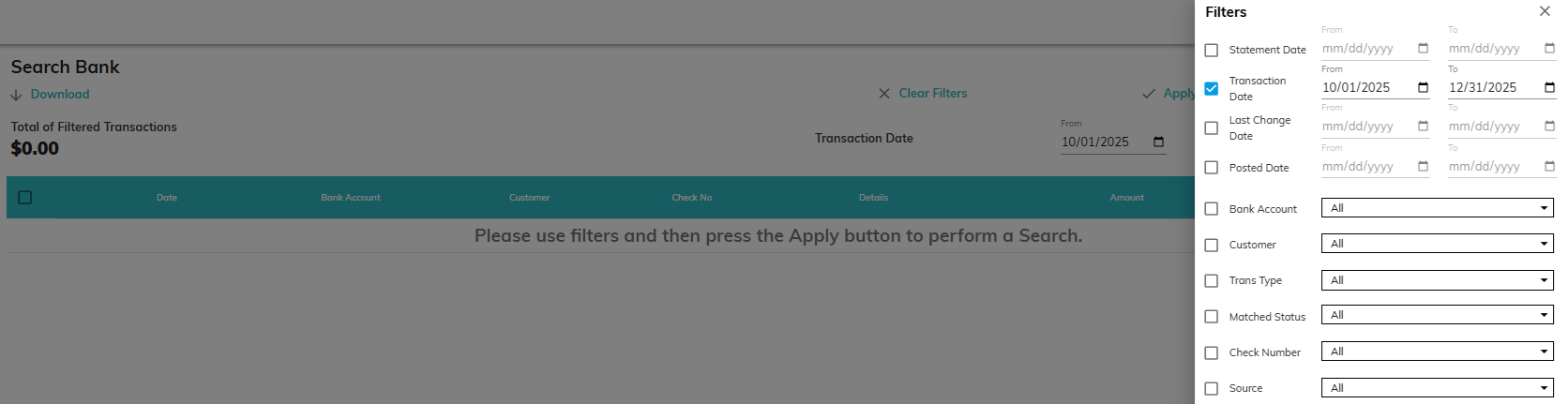
Following are explanations of the various date fields:
- Statement Date: The date associated with the bank statement in which the bank transaction cleared. This corresponds to Cleared Date on Ledger Transactions.
- Transaction Date: The date of the bank transaction indicated on the bank file. This date usually corresponds to Statement Date, unless the statement includes multiple days of Bank Statement Transactions.
- Last Change Date: The date the transaction was last changed.
- Posted Date: The date the transaction was added to the ledger.
Downloading Transactions
To download filtered from the selected filters to a CSV file, click the download icon.

Editing a Transaction
To edit a ledger transaction, click on the row containing the transaction. There are different options for editing, depending on the status of the transaction.
- Matched Transactions: You can edit the company, details, transaction type, and tax confirmation.
- Outstanding Transactions: You can edit the company, transaction date, amount, transaction type, bank account, check number, tax confirmation and details.
Transaction History
- To see the audit history of a transaction, click the history icon from the Search Bank screen. You will see a list of actions that have occurred for the transaction. The list can be downloaded by clicking the download icon on the header row.

© RAKE Digital Company, 2026 • Updated: 10/16/25
Comment or report problem with topic