
 Activity Log
Activity Log
Accessing the Activity Log
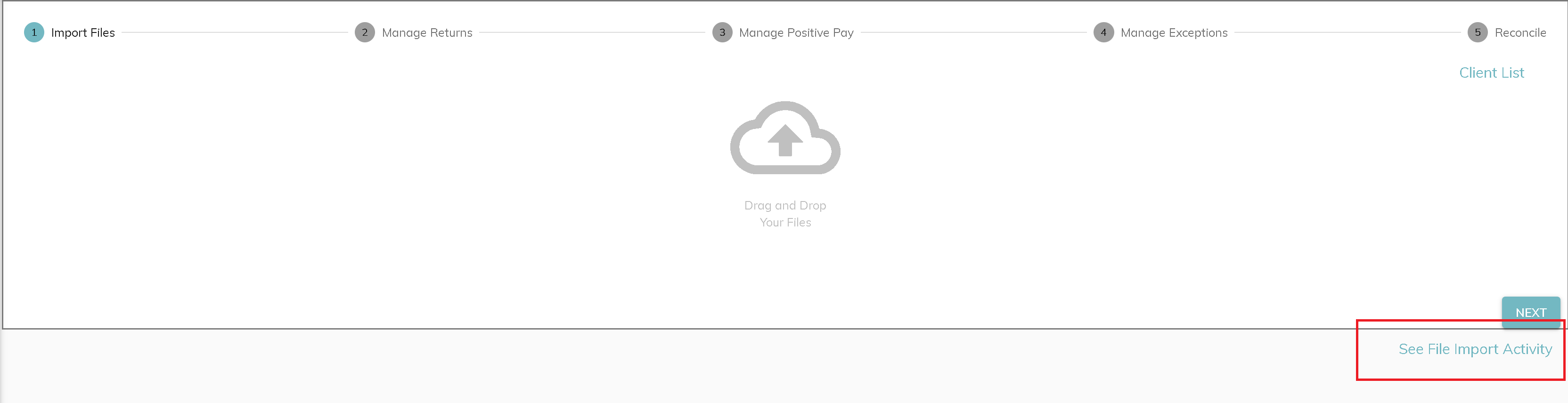
The Activity Log can be accessed by clicking See File Import Activity from the Import Files screen:
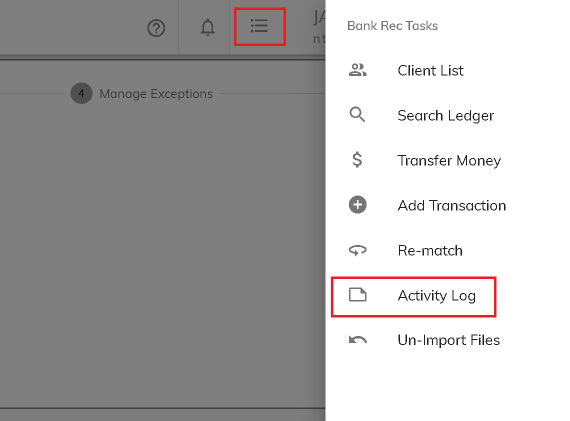
By selecting Activity Log from the Bank Rec Tasks menu:
Or, by clicking More Events in Activity Log from Notifications:

File Import Results
From the main Activity Log screen, you will see the current day import results.
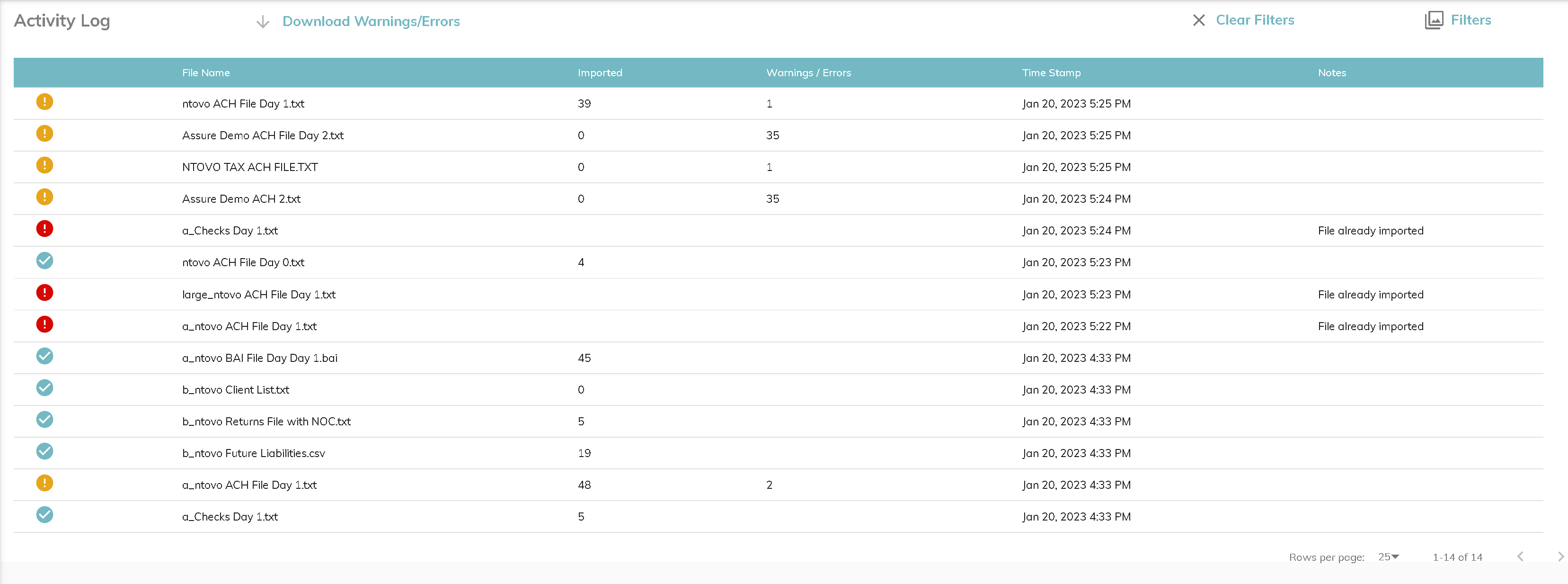
There are three possible results:
Records in file imported successfully. This means that all records in the file that that are configured to import through parsing were imported successfully. Keep in mind that when you initially drop a file in on the File Import Screen, Finlee displays the total number of records in the file. Often, the number of records imported is less than the total records in the file because Finlee is only importing records associated with the service bureau bank accounts configured in Finlee.
Transaction Warnings/Errors. If Finlee recognizes that a transaction is associated with a service bureau bank account; however, the company (end client) Id cannot be determined, you will see a warning message. When you click into the row containing the file name, you will have the opportunity to add the transactions containing warnings directly from the Activity Log by selecting the correct company Id.
- File Import Error. This error means that no transactions in the file were imported because the file was already imported or there was an error while parsing because of an unexpected file format. It is important to note that Finlee does not attempt to read data in files to determine if there are duplicate transactions in any file. The File Already Imported error is a result of a file with the exact same file hash was previously imported.
Download Warnings/Errors
Warnings and error messages can be downloaded into a csv file by clicking Download Warnings/Errors from the main Activity Log screen.
Filters
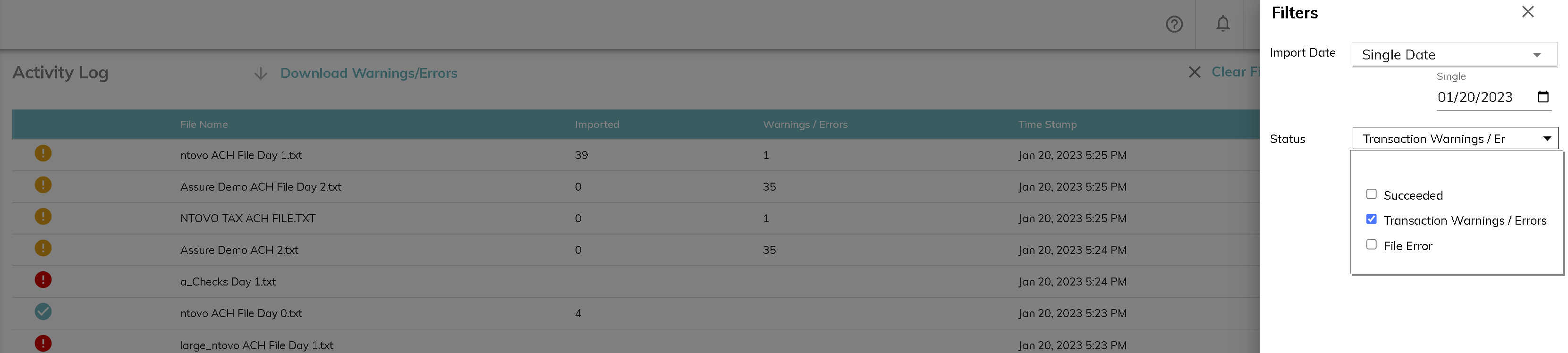
File Import results can be filtered by clicking on Filters from the main Activity Log screen. Users can choose a single import date, a date range, and by import status. Choose the desired filters and click Apply Filters to view the results.
© RAKE Digital Company, 2026 • Updated: 09/20/23
Comment or report problem with topic