
 Transfer Money
Transfer Money
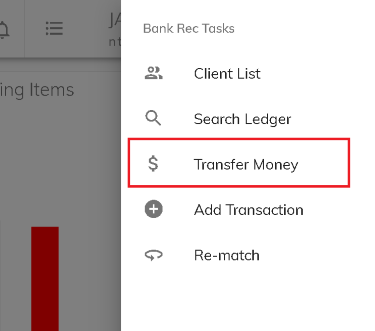
Transfer money is used to record either banking or non-banking (ledger) transfers.
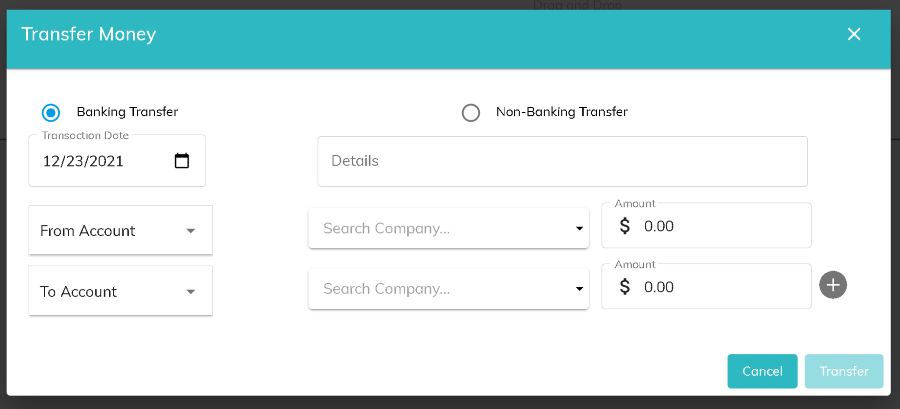
Banking Transfer
Use this option when you are transferring funds from one bank account to another. Be sure you only use this option when funds are actually being transferred and will be an entry on a bank statement to be reconciled.
Non-Banking Transfer
Use this option when you are recording a ledger transfer from one customer to another customer. Be sure you only use this option when funds are not actually being moved and you are merely reflecting that one customer's ledger balance should be reduced and another customer(s) ledger balance(s) should be increased.
Creating a Banking Transfer
Enter a transaction date and details that will be applicable to all of the transactions in the transfer. On the first details row, enter the account you will be transferring funds from. Next, choose the company id, then enter a dollar amount. All amounts should be entered as positive numbers.
On subsequent rows enter the account(s) that funds will be transferred to. Next, choose the company id, then enter a dollar amount. All amounts should be entered as positive numbers. To add more rows, click the plus icon. To remove an added row (rows 3 or greater), click the trash can icon.
The Transfer button will be enabled with the total of the 'To Account' transfers equals the 'From Account' transfer.
Once you click Transfer, ledger transactions will be created for each detail row. You can see the transfers from the Search Ledger screen.
Creating a Non-Banking Transfer
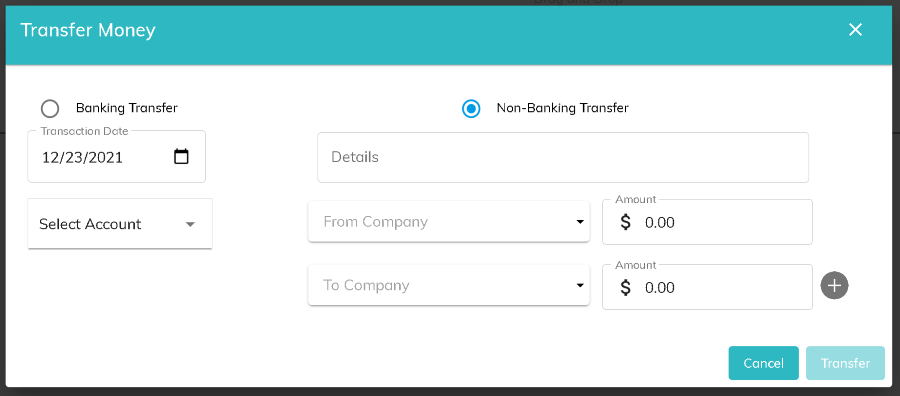
Click the Non-Banking Transfer radio button from the Transfer Money modal. Enter a transaction date, details, and bank account that will be applicable to all of the transactions in the transfer. Since funds will not actually be moved between bank accounts, there is only an option for one bank account.
On the first detail row, enter the company and amount of the ledger to move the funds from. On subsequent rows, enter the company and amount of the ledger to move the funds to. Click the plus icon to add more rows. To remove an added row (rows 3 or greater), click the trash can icon.
The Transfer button will be enabled with the total of the 'To Account' transfers equals the 'From Account' transfer.
Once you click Transfer, ledger transactions will be created for each detail row. These transactions will be tagged as non-banking transactions and will not be available on the Manage Exceptions screen to match to bank statement exceptions. You can see the transfers on the Search Ledger screen.
© RAKE Digital Company, 2026 • Updated: 12/31/21
Comment or report problem with topic