
 Creating Cards
Creating Cards
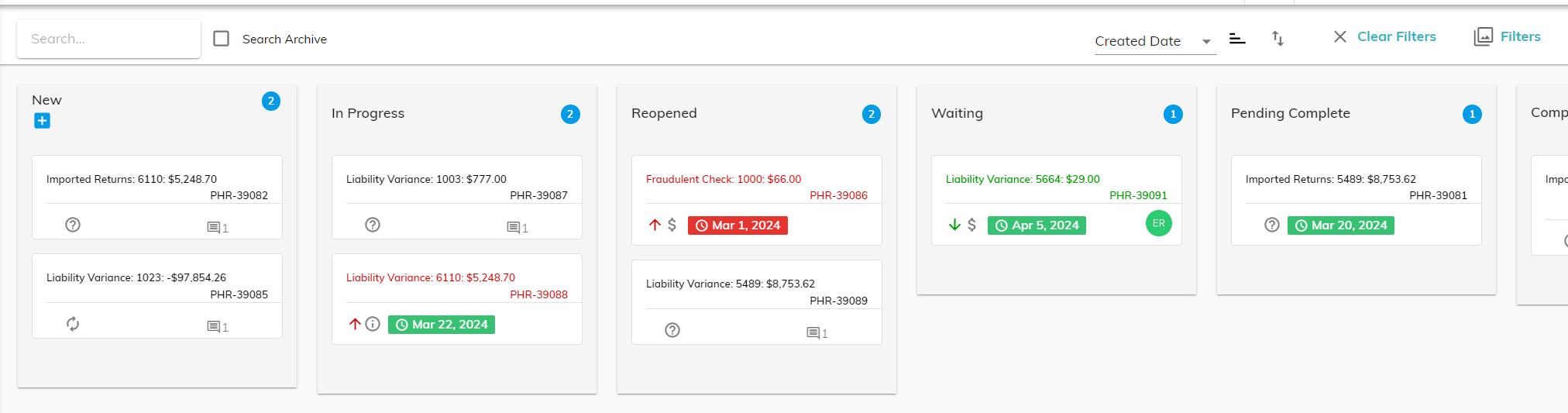
The kanban board holds individual cards that each relate to a specific client funds issue that has been identified by Assure or by a user and needs to be resolved. Cards are added to the kanban board by one of three methods:
System Generated Cards
Finlee identifies issues each time the Find Variances button is clicked.
When first identified, issues are listed on the Subledger Rec tab of the Workflow. The user has the option to create a card on the kanban board, leave the issue on the Subledger Rec (this option is typically used when the issue is known to be a very short-term temporary timing difference), or delete the issue.
Deleting Cards
Deleting an item that resulted from manually adding a transaction will remove the item from the list. It will not be added to the Kanban board or re-appear the next time the Find Variances button is clicked. Use this option with caution.
Deleting an item that was identified by Assure (e.g. Aged Uncleared, Liability Variance) will remove it from the list. It will not be added to the Kanban board; however, if the issue still exists the next time the Find Variances button is clicked, the item will re-appear on the Subledger Rec tab.
User Generated Cards (Add Transaction)
Each time a user adds a ledger transaction (**see Add Transactions article), the user has the option to add a card associated with the transaction to the Subledger Rec tab and then to the kanban board.
Manually Add a Card (from kanban board)
If you would like to add a card on the kanban board manually, click the "+" button on the top left of the kanban board screen.
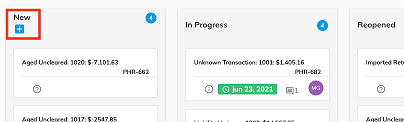
This will present a window for you to add the card details.
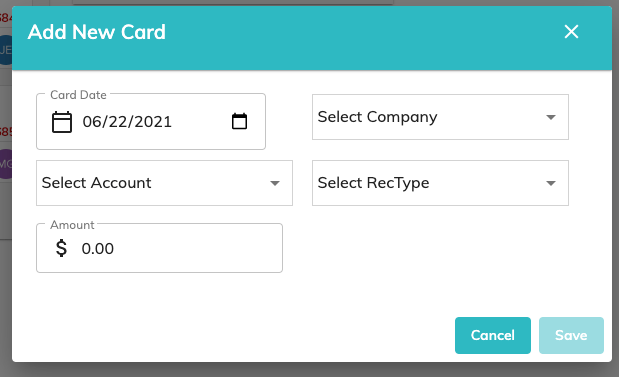
Enter the information and click "Save" to add the card to the kanban board.
© RAKE Digital Company, 2026 • Updated: 03/19/24
Comment or report problem with topic