
 User Auto-Match
User Auto-Match
When clicking Auto-Match from the Manage Exceptions screen, users are presented with the option to expand the date criteria for matching bank statement exceptions to ledger transactions to a specific date range or larger number of days to/from the bank statement transaction date. Users also have the option to specify if matching on company id is a matching criteria. When Using this Auto-Match feature, the custom criteria specified by the user applies to all existing bank statement exceptions, which is especially useful in cases where an entire ledger file (e.g. tax payment file) cleared the bank on a date other than what was expected.
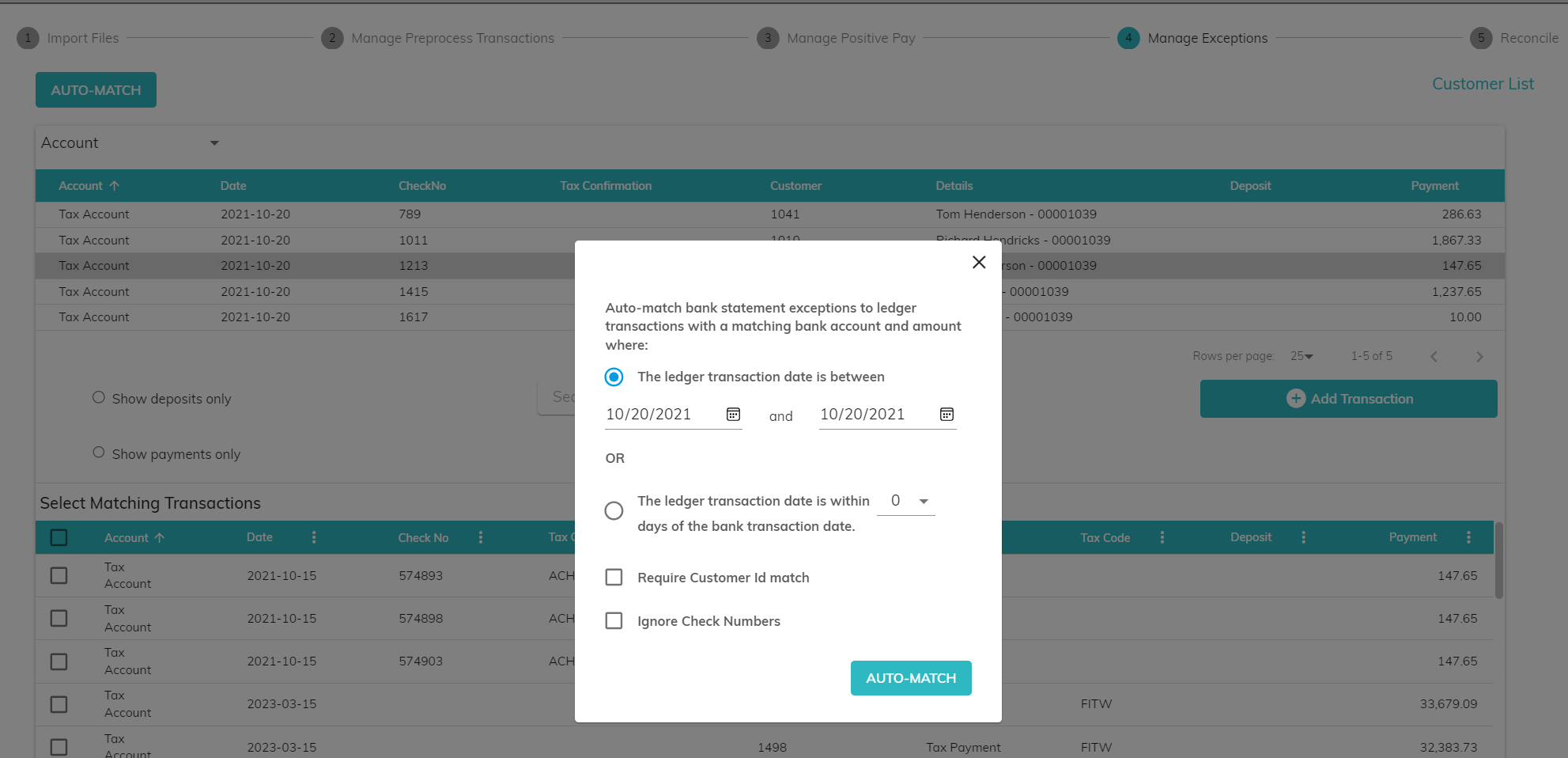
For example, assume that there is an EFTPS batch file with a large number of tax payments that are expected to clear the bank of January 17th, 2023. The transactions actually clear the bank on January 18, 2023 and are included in a bank file that does not contain the company ID for the bank statement transactions. The EFTPS transactions will not auto-match when the bank file is imported because the company Id is not present in the bank file and the dates do not match. If the user would like to auto-match these transactions, click Auto-Match from the Manage Exceptions screen. Click either the first option and choose dates of January 17, 2023 through January 18, 2023. Or, click the second option and choose 1 day. Do not check the "Require Company Id match" check box. Click Auto-Match in the pop-up box and the transactions will match.
© RAKE Digital Company, 2026 • Updated: 04/06/26
Comment or report problem with topic